

AI automation > AI agents (for most pricing work)
For recurring pricing work, scheduled automations beat AI agents in most cases. They cost less, can do multiple pre-defined steps (in a defined sequence) and are more predictable.
Start with understanding your AI cost. Uber’s CTO burned through his entire annual AI budget in four months. One consultant told Axios that a single client spent $500M on AI in a month. Cursor had to refund customers after surprise bills last year. The pattern repeats: usage scales faster than expected.
The per-token price you compared up front does not tell you what a task actually costs. The 2026 paper “The Price Reversal Phenomenon” found the cheaper-looking model is often the more expensive one, because reasoning models spend very different amounts of tokens on the same job. Gemini 3 Flash’s list price is 80% below the GPT-5.4 the paper tested, yet was 38% more expensive across the test set. In about one third of model-pair comparisons the model with the lower per-token price ended up being more expensive overall. I broke this down in full here.
Agents make this worse. Model-driven loops can increase token consumption above what a simple scheduled run would have cost. Anthropic’s own guidance states
“When building applications with LLMs, we recommend finding the simplest solution possible, and only increasing complexity when needed. This might mean not building agentic systems at all.”
Automated AI workflows are often far cheaper and offer the predictability and consistency needed for many tasks. Barry Zhang from Anthropic advises to use workflows instead of agents for many use cases:
“If your budget per task is around $0.10, for example, you’re building a high volume customer support system… in that case, just use the workflow to solve the most common scenarios and you’re able to capture the majority of the values from there.”
Workflows win on predictability for well-defined tasks. Agents earn their cost only when you genuinely need decisions made on the fly at scale. Most recurring pricing tasks are the first kind.
Schedule AI automation instead of AI agents
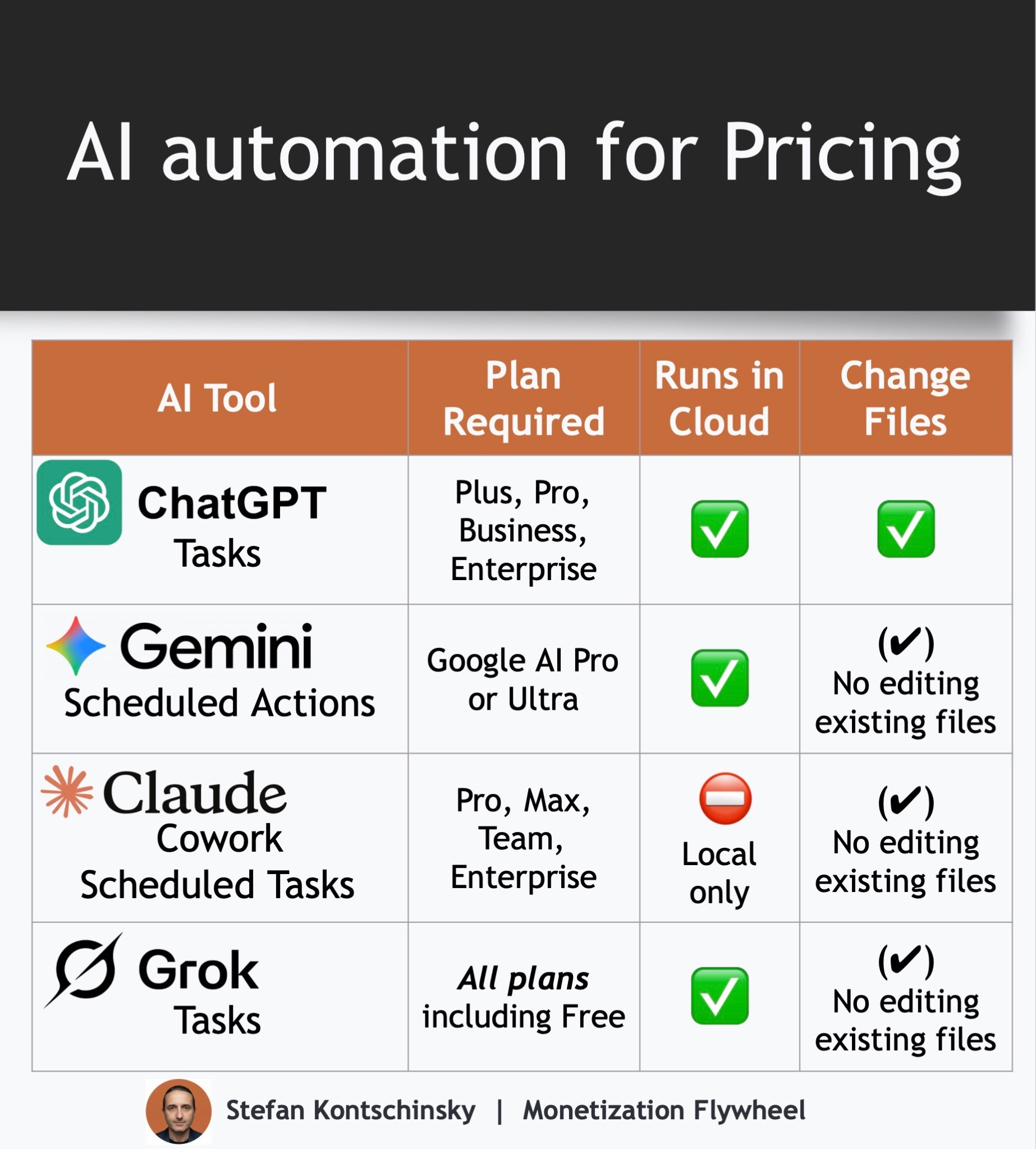
Here is how you schedule AI automations for pricing work with the major AI tools. You can run prompts on an automated schedule with all the major chatbots (ChatGPT, Google Gemini, Claude Cowork, Grok). There are two caveats:
Only ChatGPT can run automations AND update existing Google sheets.
Claude Cowork needs your laptop to be turned on to run automations.
Here is a step-by-step for each:
Automate with ChatGPT: Scheduled Tasks
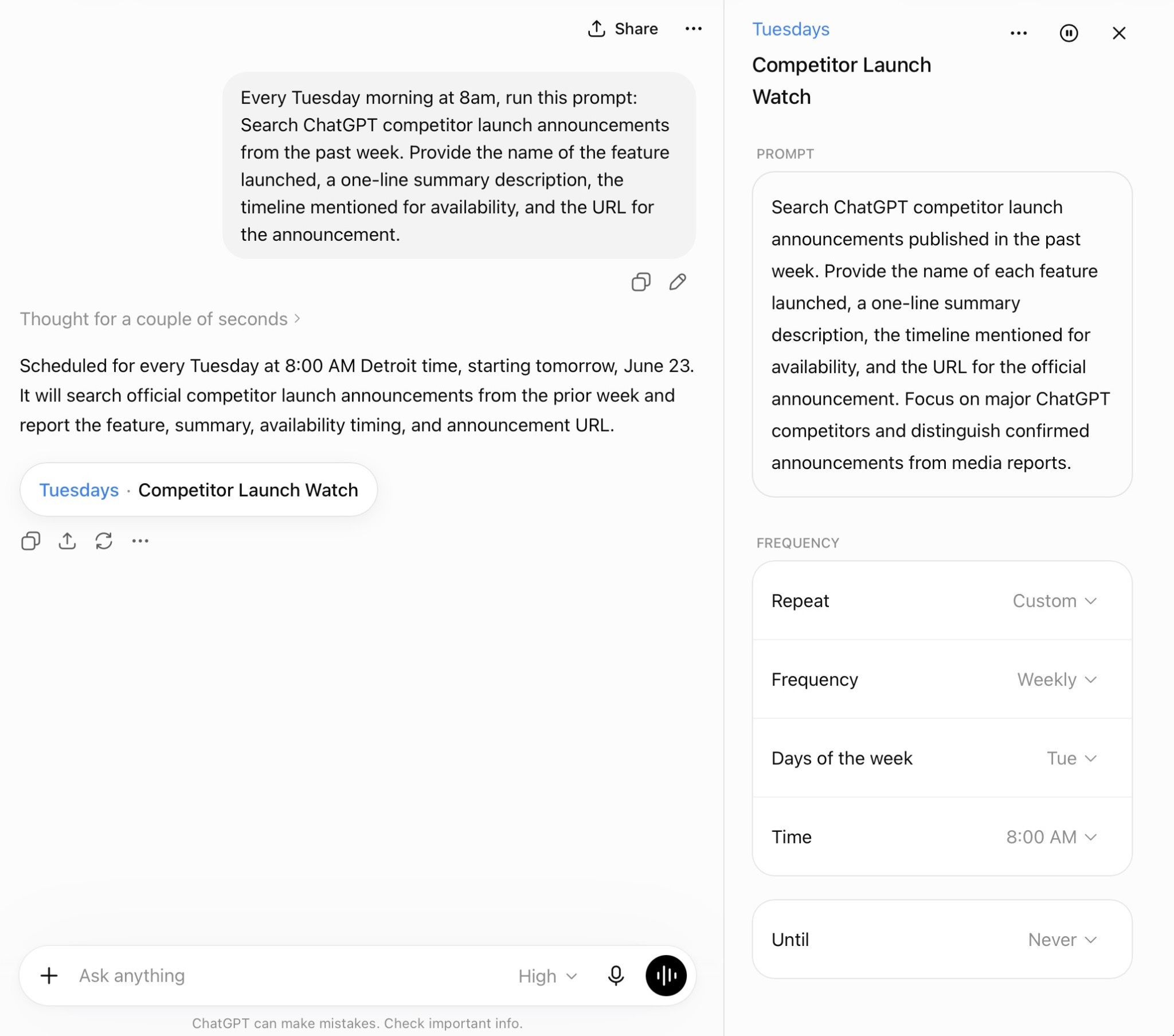
In ChatGPT, you can create a new scheduled task from most chats; just not from within GPTs. You simply type a prompt that indicates the frequency, how often it should run, and the prompt you want to run. For example:
“Every Tuesday morning at 8am, run this prompt: Search ChatGPT competitor launch announcements from the past week. Provide the name of the feature launched, a one-line summary description, the timeline mentioned for availability, and the URL for the announcement.”
This will create a scheduled task that runs automatically as per the cadence you asked it to run. Make sure you select the model you want it to use when prompting it to create it. The model selection is locked in and cannot be changed later. If you want it to run it in a different model later, you would have to recreate a new task for it.
When you click on the scheduled task, you can edit the prompt or change its cadence:
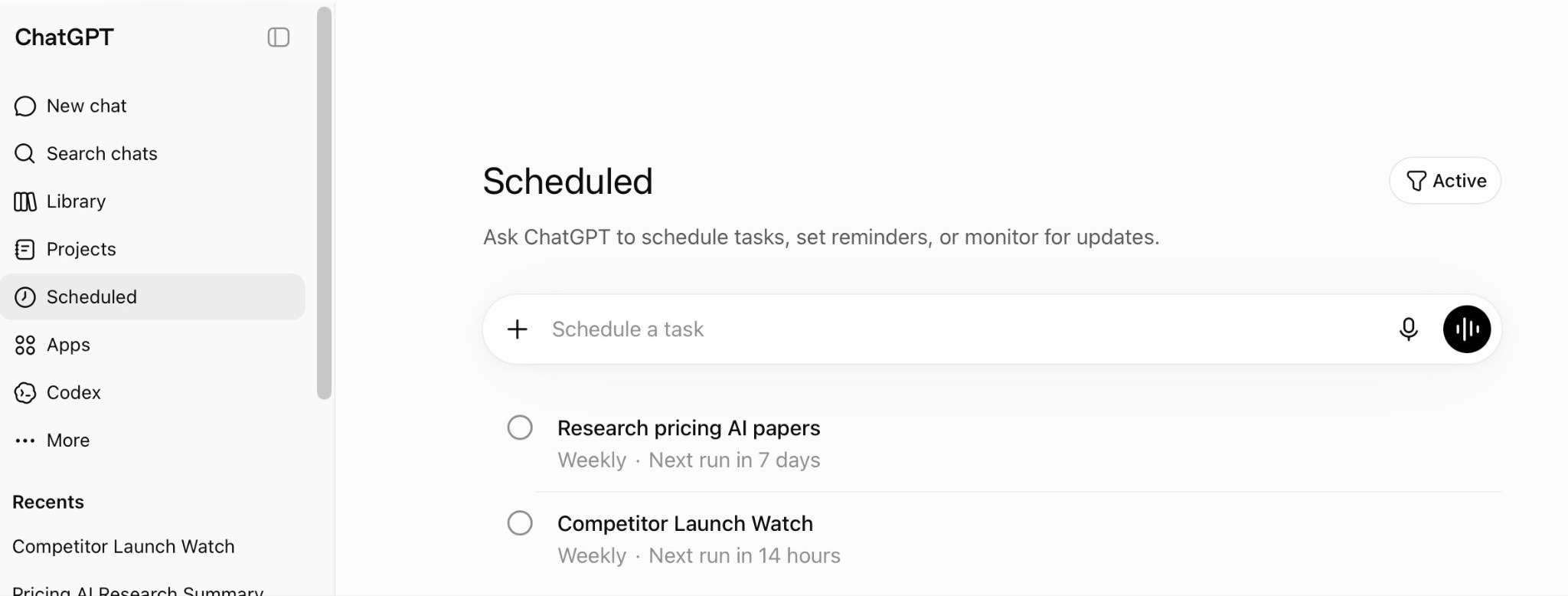
You can view and edit all your scheduled tasks by clicking on “Scheduled” in the sidebar, or simply by bookmarking https://chatgpt.com/schedules:
Once created, ChatGPT will email you every time your prompt runs.
Connect it to Google Drive: If you want the task to update a particular file, like a Google sheet tracker, you first need to connect it to Google Drive. To do that, click in the sidebar on “Apps”, find Google Drive, and follow the prompts to grant it access.
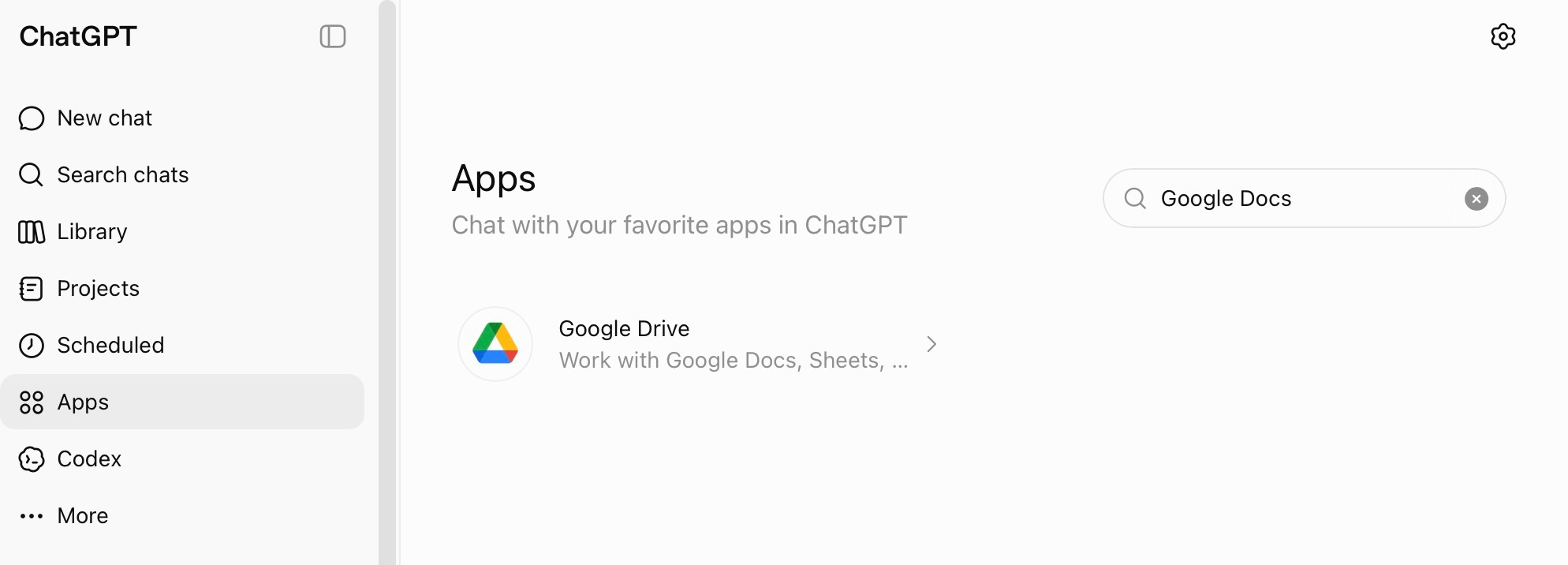
Once you connected ChatGPT to Drive, you can then add this to your prompt:
“Check if the announcements you found are already in my list <Your File URL>.
If not, add them to the bottom of that sheet.”
The first time you run the task, you might see a card asking you to confirm your permission to allow ChatGPT to use Google Drive like this
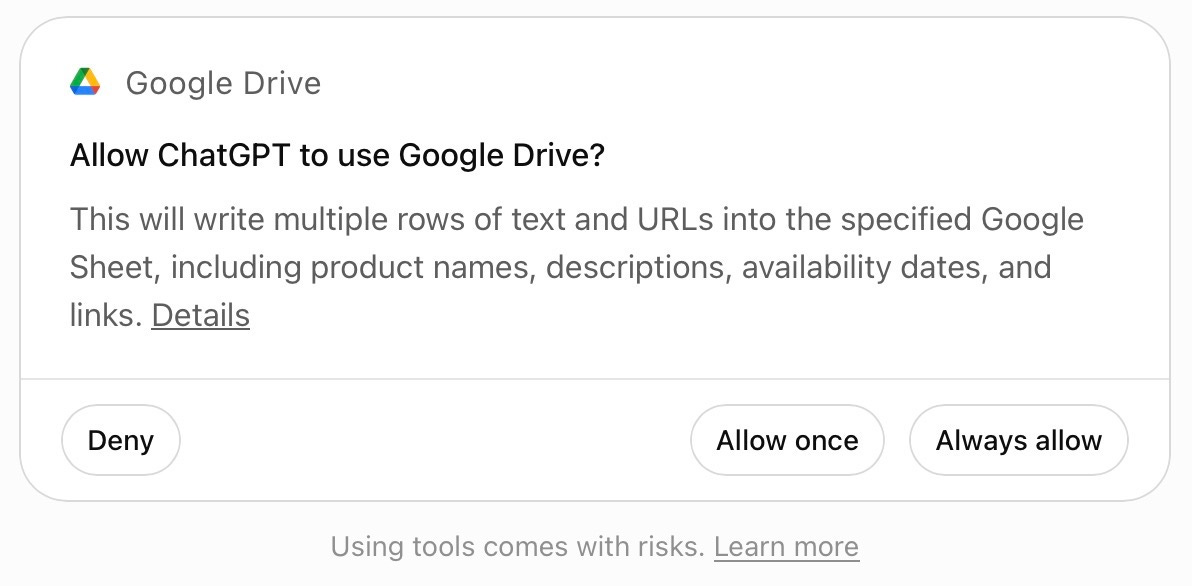
Being able to edit an existing Sheet is a unique capability that only ChatGPT has (as per my knowledge), and is excellent if you track changes over time in a file. The version history works accurately too, so you can see changes made with the appropriate time stamp.
Automate with Gemini: Scheduled Actions
In Google’s Gemini, you can in a similar way create scheduled actions, as long as you have a paid Gemini plan like Google AI Pro or Ultra. You can prompt creating scheduled actions from any chat by typing for example:
“Every Tuesday morning at 8am, run this prompt: Search Google Gemini competitor launch announcements from the past week. Provide the name of the feature launched, a one-line summary description, the timeline mentioned for availability, and the URL for the announcement.”
This will create a scheduled action that runs automatically as per the cadence you asked it to run. Make sure you select the model you want it to use when prompting it to create it. The model selection is locked in and cannot be changed later. If you want it to run it in a different model later, you would have to recreate a new action.
You can view all your scheduled tasks by clicking on the cogwheel at the bottom left of your Gemini console, and then on “Scheduled actions”, or simply by bookmarking https://gemini.google.com/scheduled. This shows you the list like this, and you can also create new scheduled actions from here:
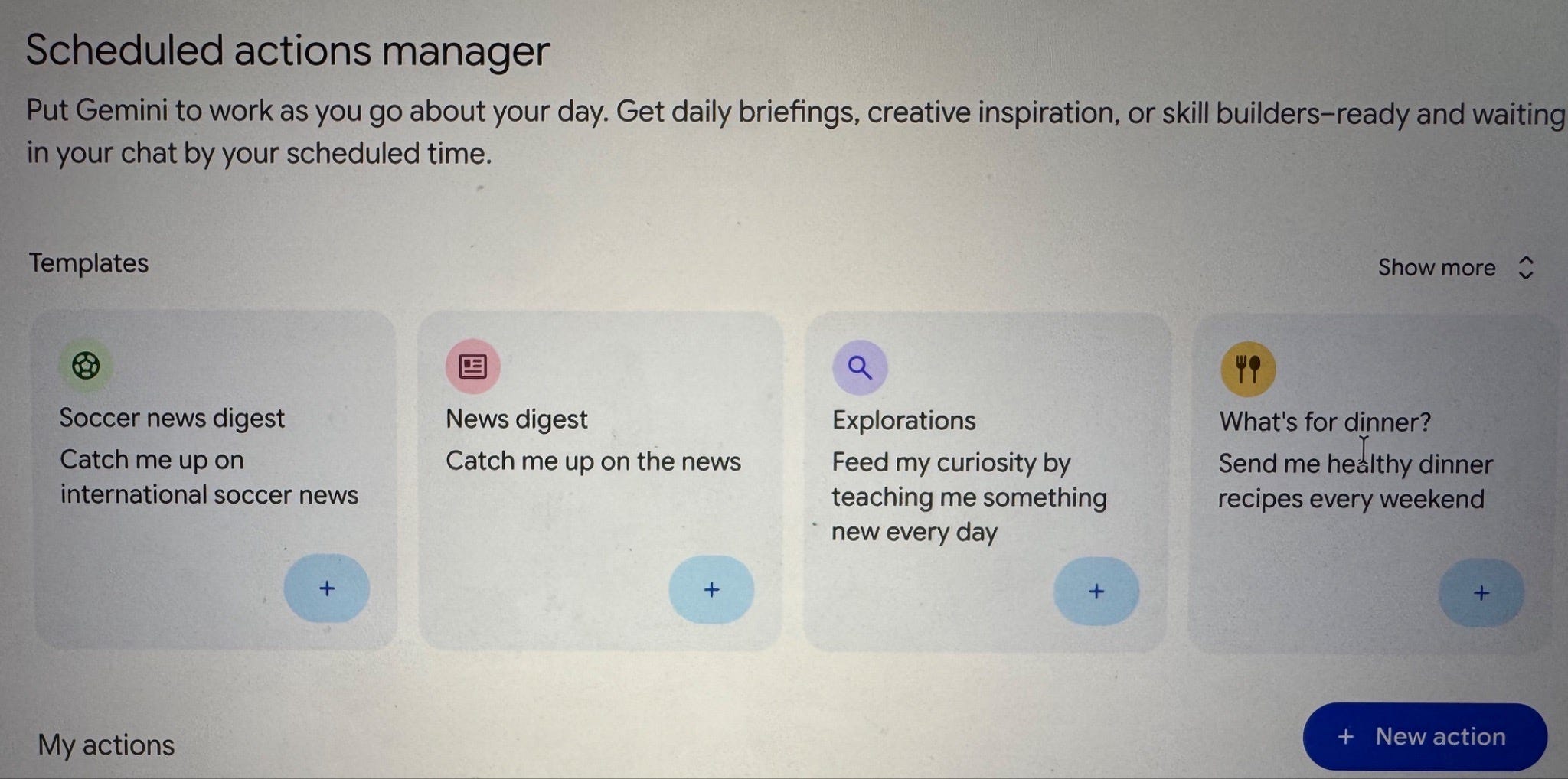
Connect it to Google Drive: If you want it to run a workflow outside of Gemini, it is by default connected to Google Drive and can ask it to update a particular file, like a Google sheet tracker.
One important limitation: Even though you can connect Gemini to Google Drive, Scheduled actions cannot change existing documents. It can only read your existing files and create new ones.
Automate with Claude Cowork: Scheduled Tasks
Claude can also run automations, but there is a catch: Anthropic so far has scheduled tasks not in the UI of the web app, but only in the Claude desktop app. So the main difference is that scheduled tasks run locally on your machine in Cowork and require your laptop to be powered on, or they will not run.
One sidenote: Claude recently launched server-hosted scheduled tasks option in Claude Code, so I think it will only be a matter of time until we will see the same for Cowork.
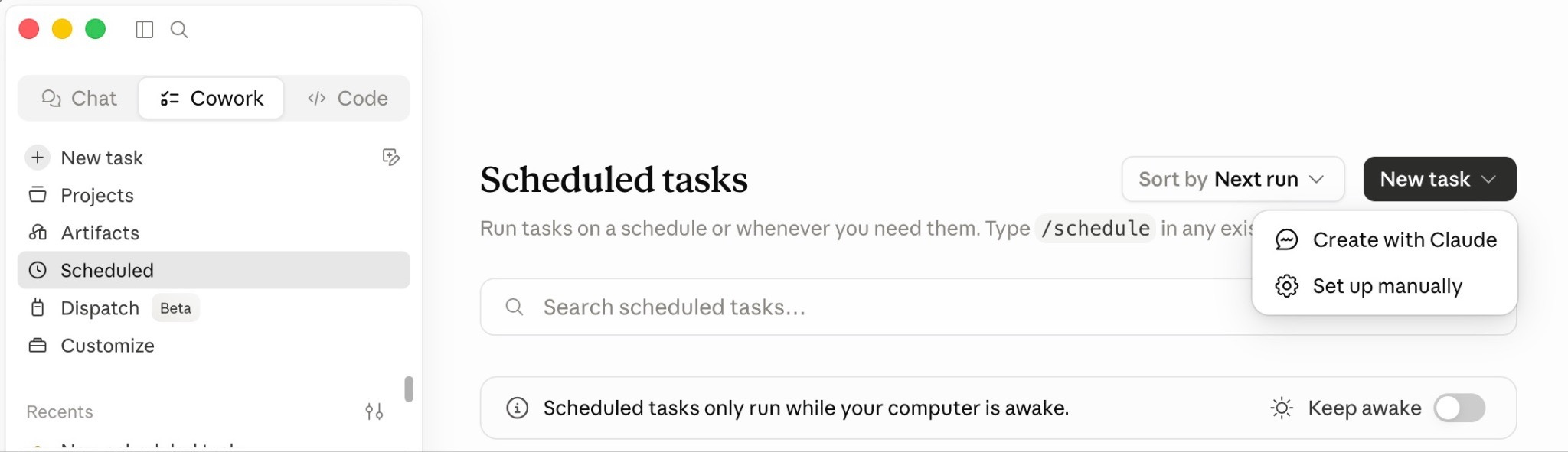
To create a scheduled task with Claude Cowork, first you’ll need to download Claude to your laptop. Once you have the app installed, select “Cowork” in the top left, then either
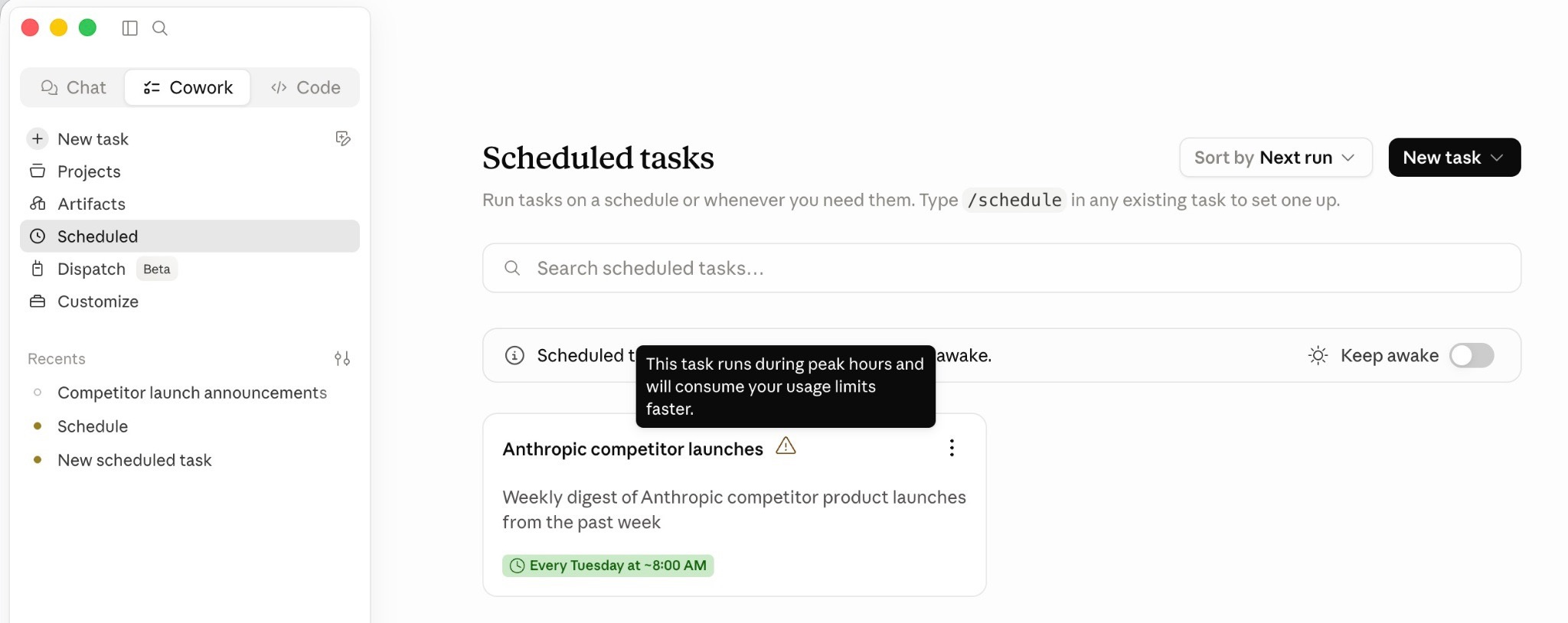
Click on “Scheduled” in the sidebar and then on “New Task” on the right, or
Type
/schedulein the task input to launch a Skill that walks you through creating a task, orDescribe your task in a prompt like this:
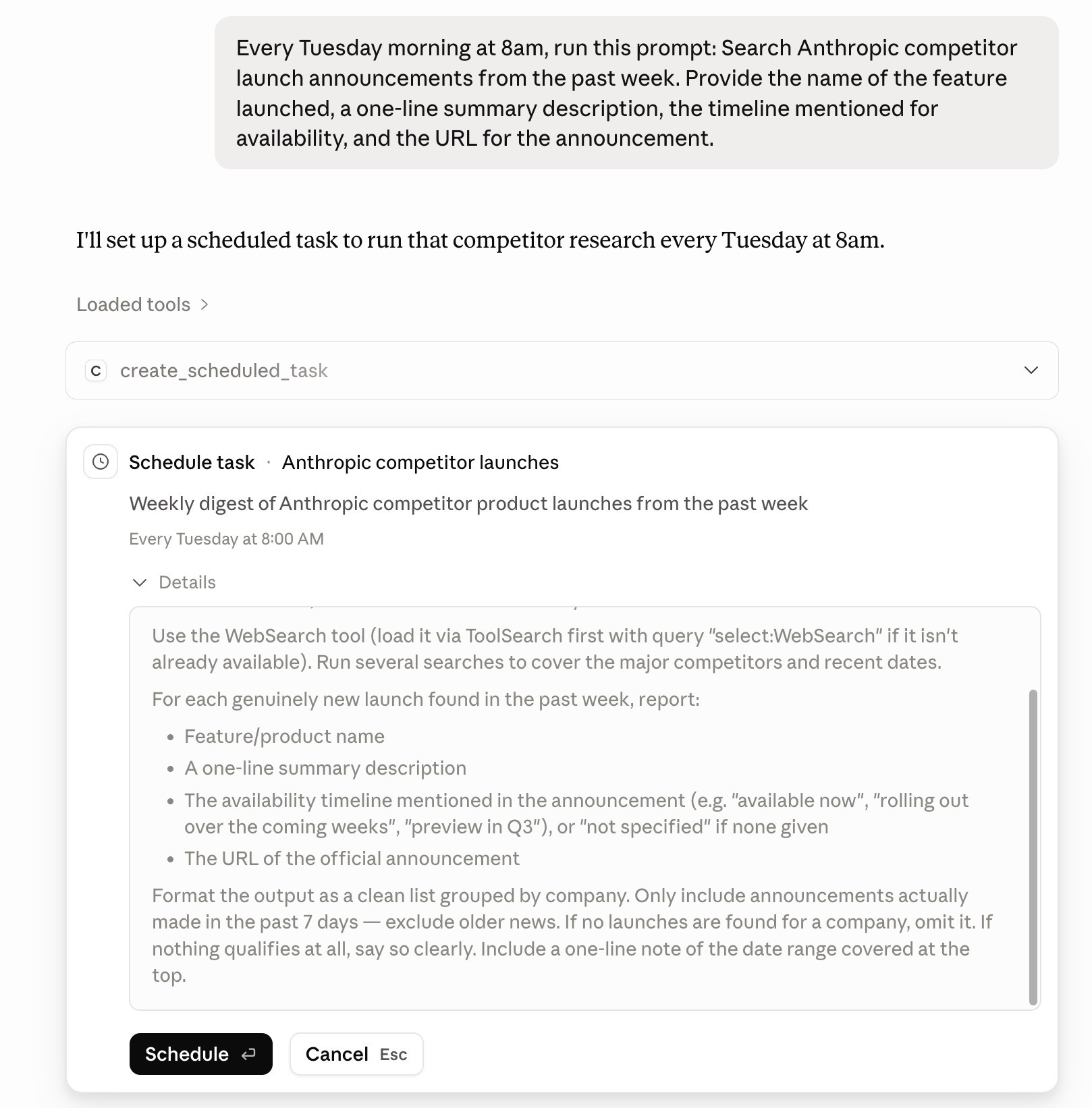
Then click on “Schedule”.
Scheduled tasks only run while the Claude app is open. You can edit Scheduled tasks by clicking on “Scheduled” in the Cowork sidebar. If you scheduled a task to run during peak hours (i.e. weekdays 5AM-11AM PT), you likely see a warning here that this task “will consume your usage limits faster”.
If you want to consider running automations overnight to save cost, you will have to keep your laptop on. Claude has the “Keep awake” option for that. If your laptop is turned off at the time you scheduled a task, the automation runs once you launch Claude next time.
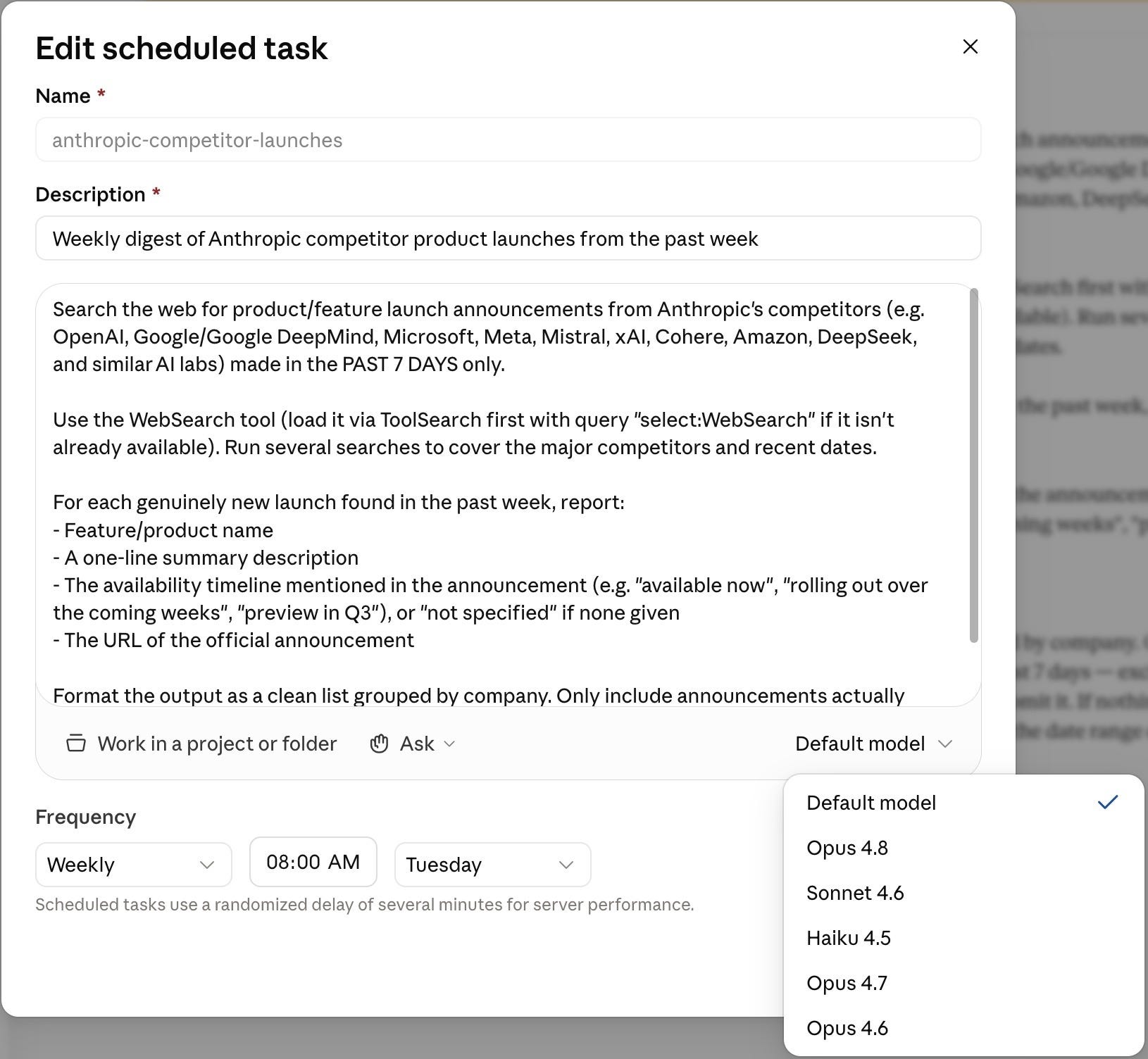
Clicking into the task details shows you how Claude already enhanced your prompt. You can also edit the prompt further here and even change which model it runs with.
Once you run the task for the first time, you might see a notification asking to grant specific permissions, which are then added to the task for future runs.
Connect it to Google Drive: If you want it to run a workflow outside of Claude, you can connect it to Google Drive and have it read existing files or create new files. To connect it, click in the Claude Cowork sidebar on “Customize”, then on “Connect your apps”, search for “Google Drive”, then on the black button “Connect”, and follow the prompts in your browser to grant Claude read/create permissions.
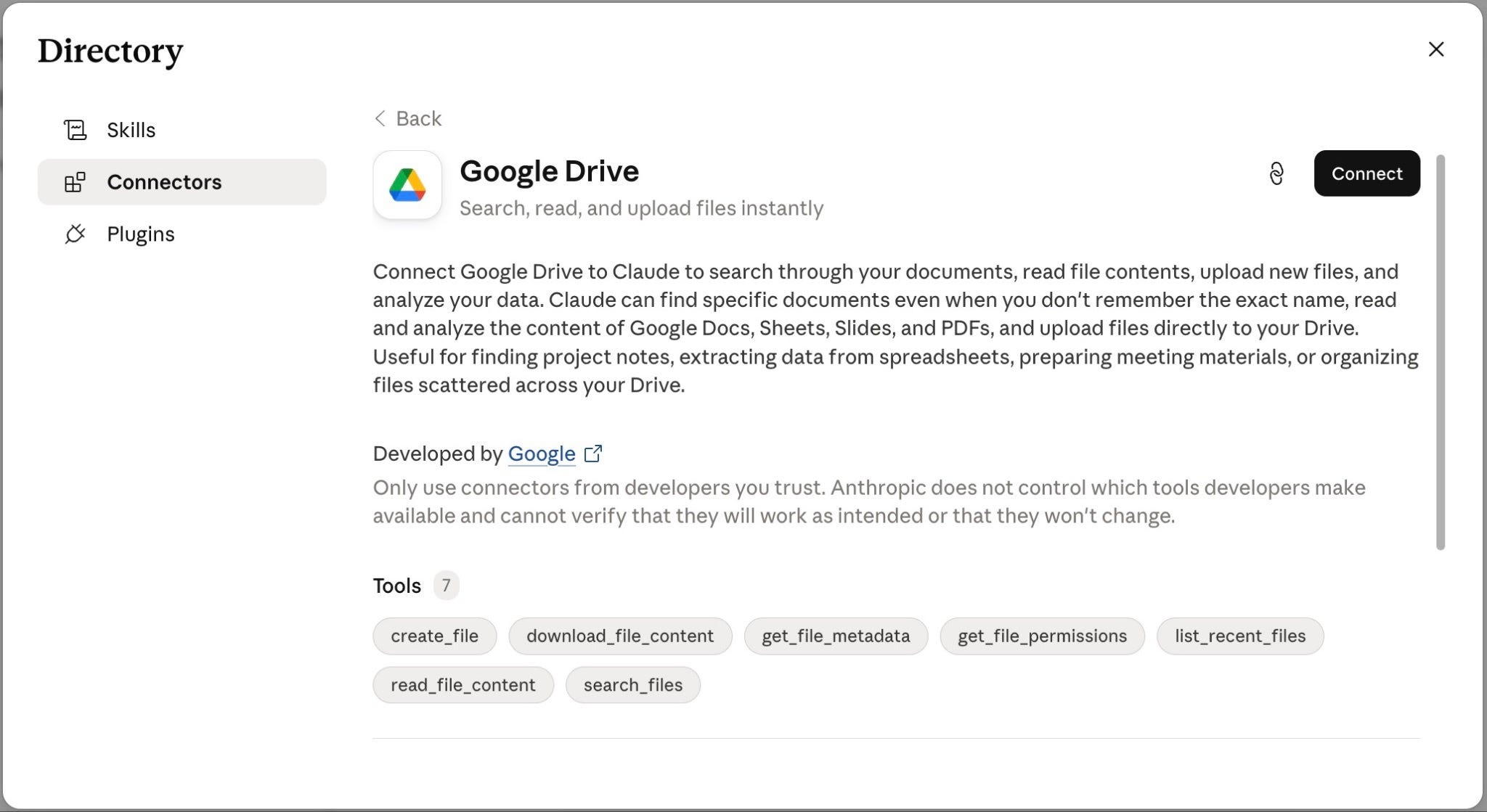
One important limitation: Even though you can connect Claude to Google Drive, it cannot change existing documents. It can only read your existing files and create new ones.
Automate with Grok: Scheduled Tasks
I found no way to create a new scheduled task from just a normal chat in Grok. However, you can navigate to Tasks by clicking on your name in the bottom left and then on “Tasks”.
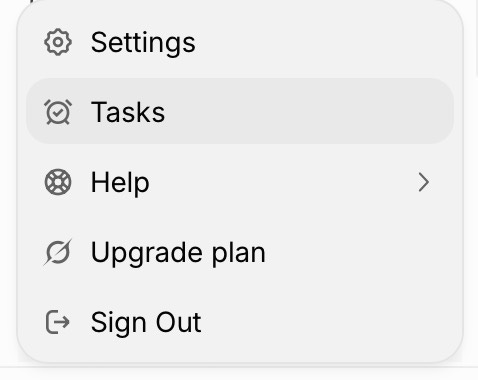
Or simply bookmark the URL directly: https://grok.com/tasks.
Once there, click on “Create task” or “New task”:
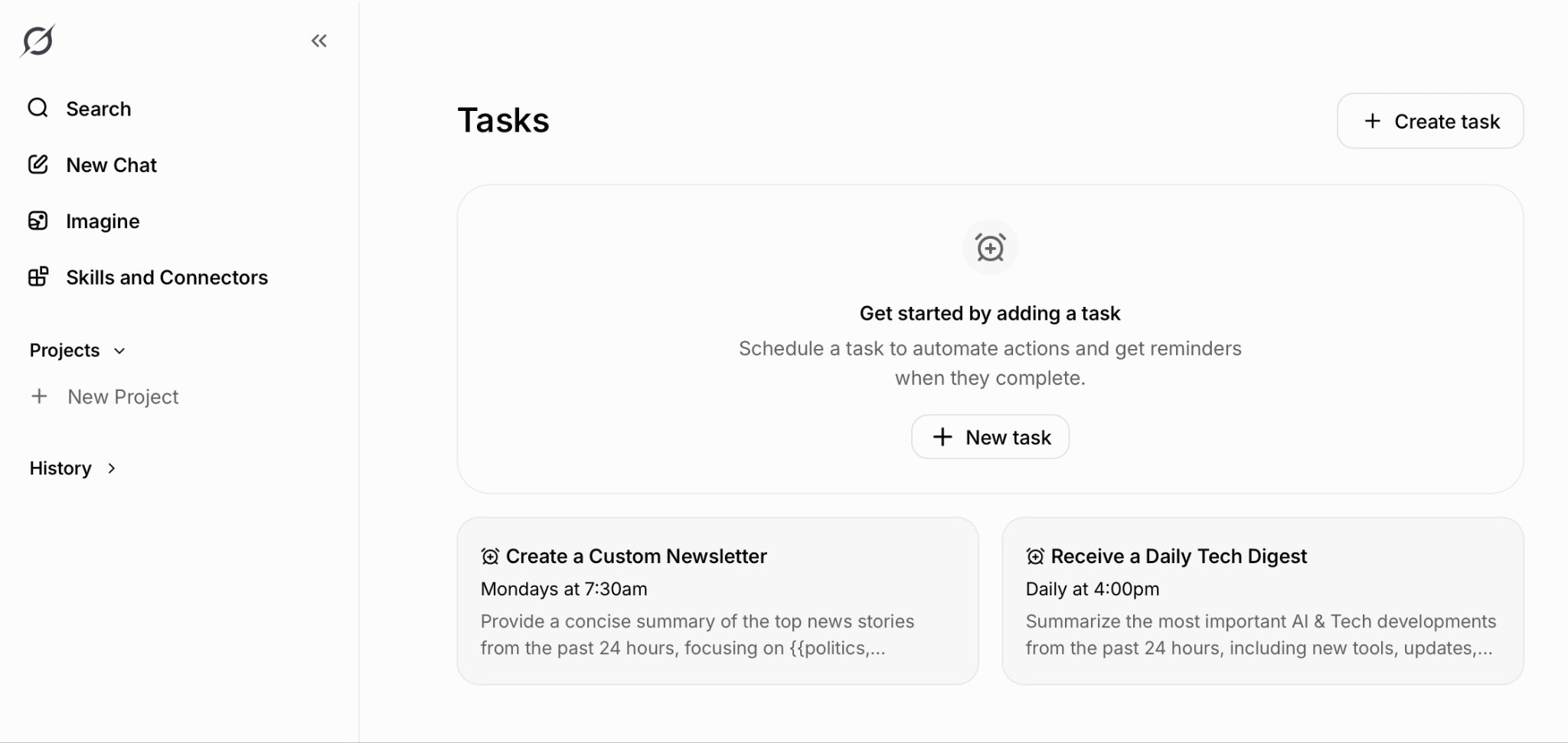
That will open a popup window where you can select your cadence, enter your desired prompt, and select how you prefer to be notified (email, app, both, or not at all):
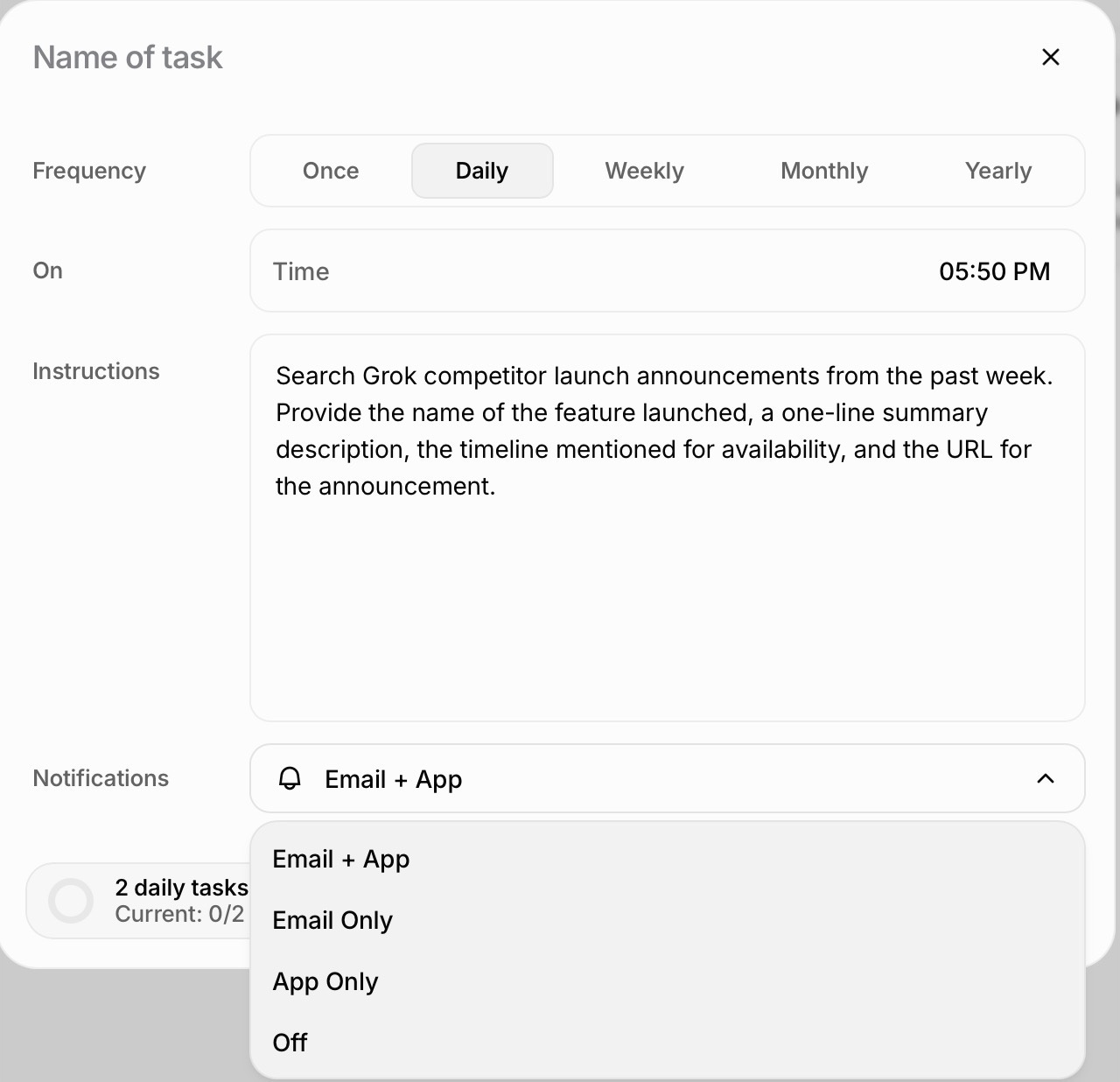
There is no model selection here, and given the only option I found to create a task is via navigating to Tasks, I am not 100% certain what model the tasks run with.
Connect it to Google Drive: If you want it to run a workflow outside of Grok, you can connect it to Google Drive and have it read existing files or create new files. To connect it, click in the Grok sidebar on “Skills and Connectors”, then click on “Google Drive”, then on the black button “Connect”, and follow the prompts in your browser to grant Grok read/create permissions.
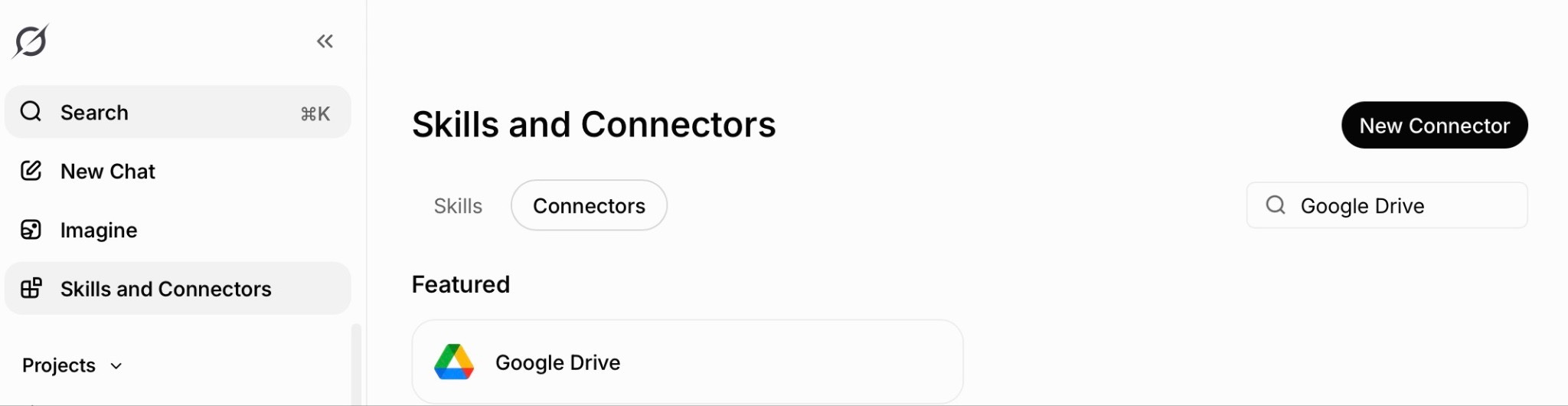
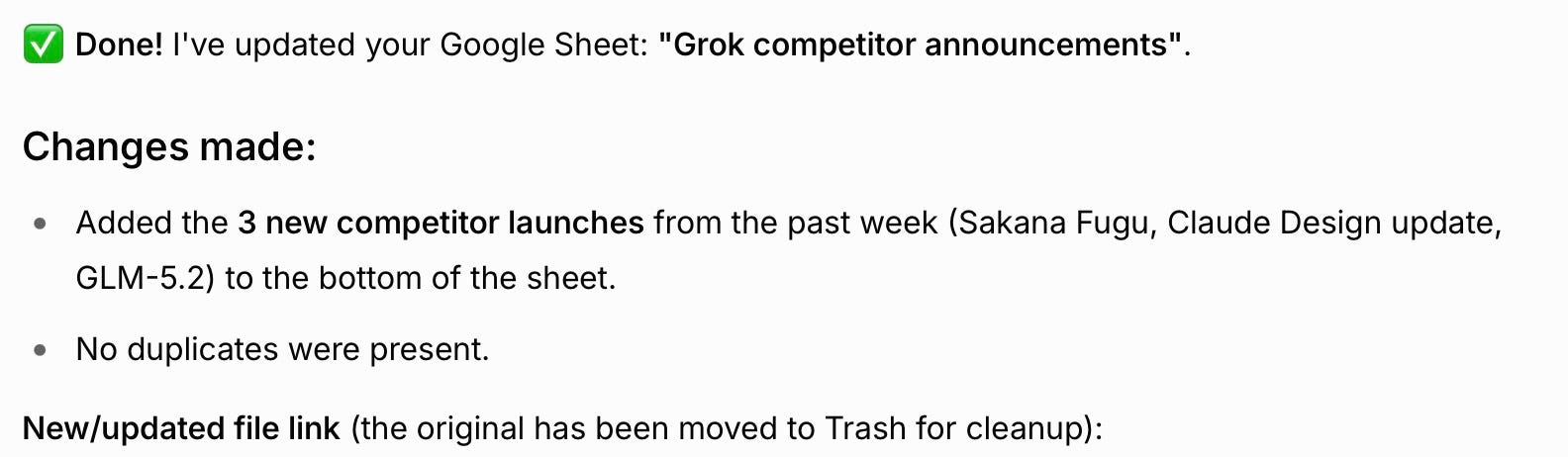
One important limitation: Even though you can connect Grok to Google Drive, it cannot change existing documents. It can only read your existing files and create new ones. I’ve seen Grok do a smart workaround though: create a new file with the additional rows added, saved as a new file and the old file moved to trash.


Important distinction: AI automation versus AI agents. Knowing this can save you a whole lot of money.